
How to Convert CSV to Google Sheets: The Complete Guide (2025)
Learn how to import, convert, and fix CSV files in Google Sheets using the fastest methods available. Fix delimiter errors, encoding issues, and messy columns, no downloads required.

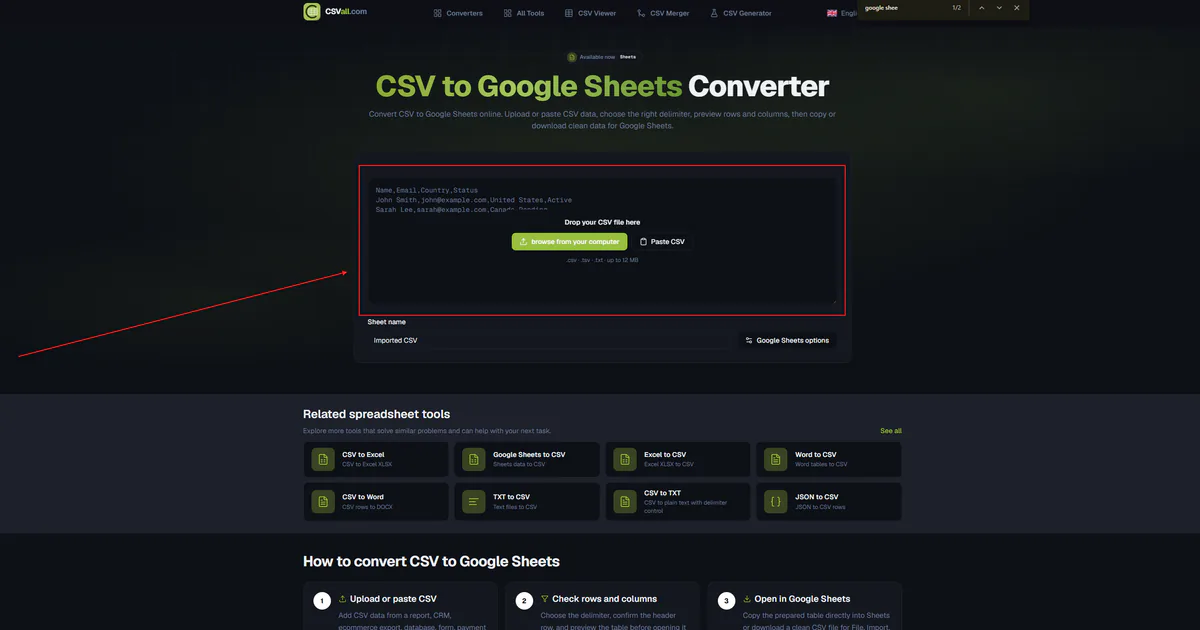
Quick link: preview and prepare any CSV for Google Sheets with the free CSV to Google Sheets converter. This guide lives at /blog/csv-to-google-sheets-guide so the tool URL and the article URL stay distinct.
Every method, every common error, and the fastest fix, all in one place. No fluff, no software to download.
What you'll learn in this guide: Four proven methods to get CSV data into Google Sheets, how to fix the most common import errors (broken columns, garbled characters, missing leading zeros), and how to clean and prepare your CSV file before uploading so nothing breaks.
Keyword Research: What People Actually Search
Before writing this guide, I ran a full keyword analysis, the same process an SEO tool like Semrush or Google Keyword Planner produces. Here is the complete breakdown of keywords with the strongest ranking opportunity for a tool like CSVall's CSV to Google Sheets converter.
Primary Keywords
| Keyword | Intent | Difficulty | Why It Matters |
|---|---|---|---|
| CSV to Google Sheets | Transactional | High | Core head term, high volume, worth targeting with a dedicated tool page |
| convert CSV to Google Sheets | Transactional | High | Exact action, people ready to use a tool right now |
| import CSV to Google Sheets | Informational | Medium | High search volume, often hits blog content |
| open CSV in Google Sheets | Informational | Medium | Beginner intent, great for top-of-funnel |
| upload CSV to Google Sheets | Transactional | Medium | Mid-level, good blog conversion target |
Long-Tail Keywords (Best Ranking Opportunity)
| Long-Tail Keyword | Type | Difficulty |
|---|---|---|
| paste CSV into Google Sheets without losing formatting | Problem-based | Low |
| CSV not splitting into columns Google Sheets | Problem-based | Low |
| fix CSV delimiter Google Sheets | Problem-based | Low |
| CSV encoding issue Google Sheets garbled characters | Problem-based | Low |
| CSV semicolon delimiter Google Sheets fix | Problem-based | Low |
| CSV to Google Sheets online free no sign up | Transactional | Low |
| prepare CSV for Google Sheets | Informational | Low |
| how to clean CSV before uploading to Google Sheets | Informational | Low |
| leading zeros disappear CSV Google Sheets | Problem-based | Low |
| CSV file to spreadsheet online no download | Transactional | Low |
| import multiple CSV files to Google Sheets | Advanced | Medium |
| CSV to Google Sheets IMPORTDATA formula | Informational | Low |
| Google Sheets CSV import settings explained | Informational | Low |
| CSV with special characters Google Sheets | Problem-based | Low |
| tab separated file to Google Sheets | Informational | Low |
SEO strategy note: The highest opportunity lies in problem-based long-tail keywords. People who search "CSV not splitting into columns Google Sheets" are in pain, they need a solution right now. A tool that fixes the problem instantly wins that traffic and converts it. Target these with this blog post and link to the converter tool at every relevant point.
What Is a CSV File and Why Move It to Google Sheets?
A CSV (Comma-Separated Values) file stores data as plain text. Each line is one row. Commas separate the columns within that row. That's it. No formatting, no formulas, no colors, just raw data.
You encounter CSV files everywhere: exported customer lists from your CRM, analytics reports from your SaaS tools, database extracts from your developer, financial exports from accounting software, and product catalogs from e-commerce platforms.
Google Sheets, on the other hand, gives you formulas, charts, sharing, collaboration, and pivot tables. It turns flat data into something you can actually work with. Moving CSV data into Google Sheets opens up analysis tools that a plain text file simply cannot offer.
The challenge is that the move from CSV to Google Sheets is not always smooth. Delimiters break. Characters go garbled. Leading zeros disappear. Entire datasets collapse into a single column. This guide covers every scenario, from the simple paste to the tricky encoding fix.
Step Zero: Prepare Your CSV Before You Import
Most people skip this and then spend 20 minutes troubleshooting after the import fails. If you clean your CSV first, the import works first time.
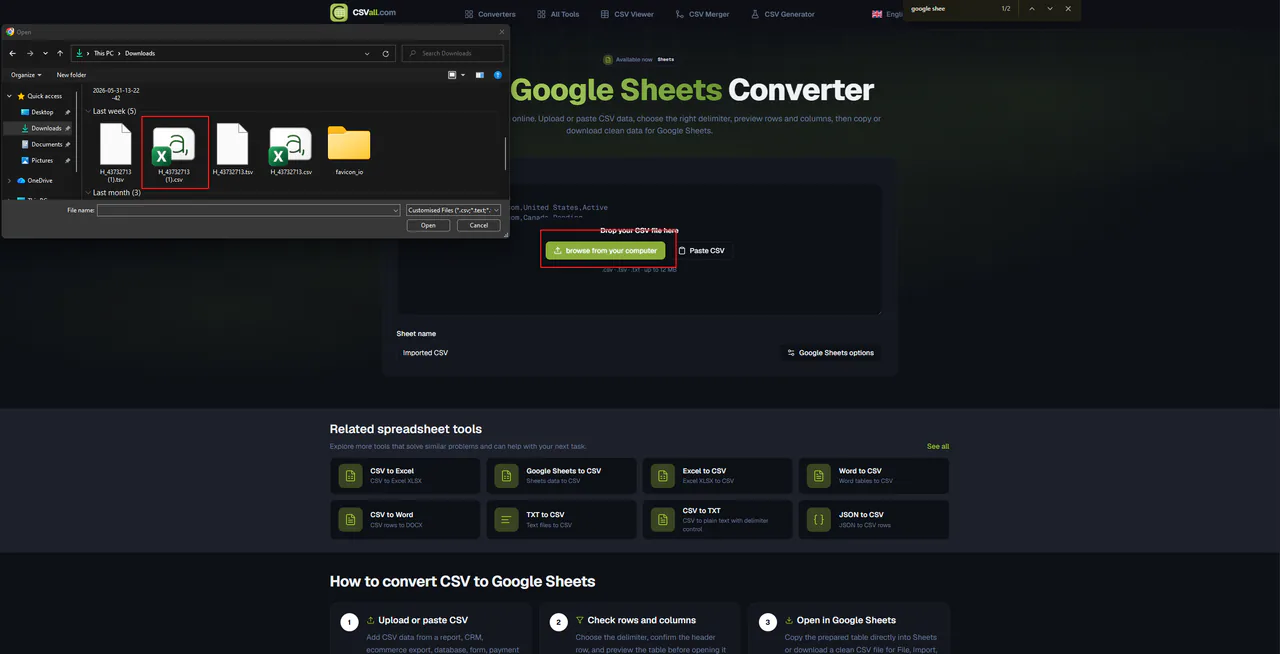
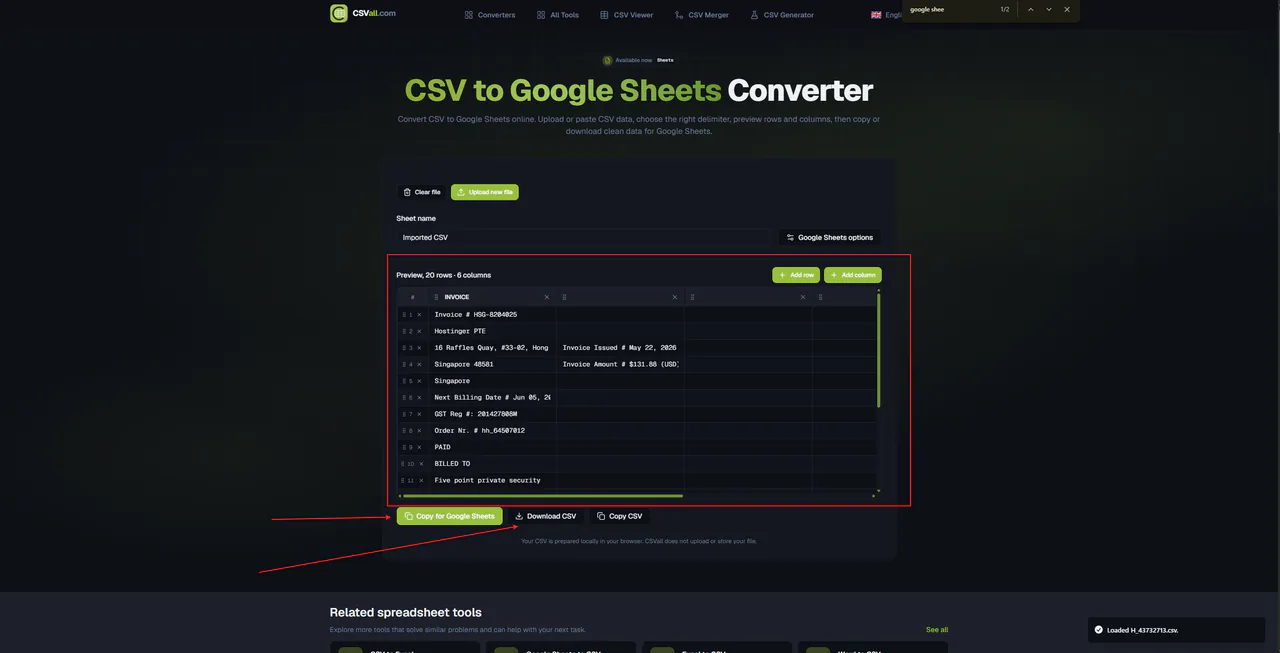
Use CSVall's CSV to Google Sheets converter to preview your file before you touch Google Sheets. You can paste raw CSV data, upload a file, choose your delimiter, and see exactly how the rows and columns will look, all inside your browser, without sending your data anywhere.
What to Check Before Importing
- Delimiter: Is your file actually comma-separated, or does it use semicolons, tabs, or pipes? European exports commonly use semicolons because the comma is the decimal separator in many European locales.
- Encoding: Does your file contain accented characters, currency symbols, or non-English text? If so, the file must be UTF-8 encoded, otherwise those characters turn into garbage on import.
- Header row: Does your file have a clean first row with column names? Google Sheets uses this to set up the spreadsheet structure.
- Quoted fields: If any field contains a comma or a line break, that field should be wrapped in double quotes. An unquoted comma inside a value breaks the column count.
- Blank rows: A stray empty row in the middle of the data confuses formulas and filters. Remove them first.
Tip. Fastest way to prepare any CSV: Open your file in CSVall and switch between delimiter options until your data shows clean columns. Then copy the prepared output directly into Google Sheets. This takes about 30 seconds and eliminates 90% of import problems before they happen.
Method 1. File › Import (The Reliable Way)
Google Sheets built-in import dialog, Most Reliable
Best for: one-time imports, files from your computer, full control over import settings.
- Open a Google Sheet, either a new one or the sheet where you want the data.
- Click File in the top menu, then click Import.
- In the dialog that opens, click the Upload tab and drag your CSV file into the box, or click "Select a file from your device."
- Once the file uploads, the import settings window appears. This is the critical step most people rush through.
- Set Import location, "Create new spreadsheet," "Insert new sheet(s)," or "Replace current sheet." Pick based on your workflow.
- Set Separator type, choose "Comma" for standard CSV, "Tab" for TSV files, or "Semicolon" for European exports. If you're unsure, pick "Detect automatically."
- Check Convert text to numbers and dates. Leave this on unless you have ZIP codes or ID numbers that start with zero, in that case, turn it off to preserve leading zeros.
- Click Import data.
Watch out: Google Sheets' "Detect automatically" separator sometimes misdetects files with mixed content. If your data comes out wrong after the import, undo, go back to the import dialog, and set the separator manually.
Method 2. Google Drive Upload and Convert
Upload via Google Drive, Quick
Best for: people who already work in Google Drive and want a permanent Sheets file created automatically.
- Open Google Drive. Click the + New button and choose "File upload."
- Select your CSV file. Drive uploads it and shows it as a CSV file in your Drive.
- Double-click the CSV file. Drive opens it in a preview view.
- At the top of the preview, click Open with Google Sheets. Sheets opens the file and converts it automatically.
- To keep it as a permanent Google Sheets file, go to File › Save as Google Sheets.
To make this automatic for every future upload, go to Drive's settings (gear icon in the top right), open Settings, and check "Convert uploads to Google Docs editor format." Now every CSV you drop into Drive becomes a Sheets file without any extra steps.
Note: This method gives you less control over import settings compared to Method 1. If your CSV uses a non-standard delimiter, the auto-conversion may not split the columns correctly. In that case, clean your file in CSVall first to fix the delimiter, then upload.
Method 3. Copy, Paste, and Split Columns
Paste raw CSV text directly, Fastest for Small Files
Best for: small datasets, quick checks, or when you already have the CSV content on your clipboard.
- Open your CSV file in any text editor. Select all content with
Ctrl+A(Windows) orCmd+A(Mac) and copy it. - Open a blank Google Sheet. Click on cell A1.
- Paste with
Ctrl+VorCmd+V. If your CSV is standard comma-separated, Google Sheets often splits the columns automatically. - If all the data lands in column A as a single long string, select the entire column A. Go to Data › Split text to columns.
- A separator box appears near your data. Set it to "Comma" (or whichever separator your file uses). The data splits into the correct columns instantly.
This method works well for files under a few hundred rows. For larger files, Method 1 or the CSVall converter handles the data more cleanly without risk of the browser freezing mid-paste.
Method 4. IMPORTDATA Formula for Live CSV URLs
Dynamic import from a public URL, Auto-Updating
Best for: CSV files hosted online that you want to stay in sync with Google Sheets automatically.
If your CSV file lives at a public URL (such as a GitHub raw file, a public API endpoint, or a dataset hosted on a government data portal), you can pull it directly into Google Sheets with a single formula.
In any empty cell, type:
=IMPORTDATA("https://example.com/your-file.csv")
Google Sheets fetches the file, parses the comma-separated values, and fills in the rows and columns. Whenever the source file updates, the sheet refreshes automatically, no manual re-import needed.
Important limitations: The URL must be publicly accessible, no login required. The CSV file must end with
.csvor serve a content type that Google Sheets recognizes as a CSV. This formula does not work with private Google Drive files or password-protected URLs.
When IMPORTDATA Is Not Enough
If you need to import from a private source, transform the data before it reaches the sheet, or work with very large files, use CSVall's converter to prepare the data first and then import the cleaned output through Method 1.
Fix the 7 Most Common CSV Import Errors
These are the errors that show up repeatedly in support forums, Reddit threads, and Google's own help pages. Every single one is fixable in minutes once you know what causes it.
| Error | Cause | Fix |
|---|---|---|
| All data in one column | Wrong delimiter, file uses semicolons or tabs, but import assumed commas | In the import dialog, set the separator manually. Or use Data › Split text to columns after pasting. |
| Garbled characters (Renée → Renée) | Encoding mismatch, file is not UTF-8 but Windows-1252 or ISO-8859-1 | Re-save the original file as UTF-8 in Notepad++ or VS Code. Then re-import. |
| Leading zeros disappear (02134 → 2134) | Google Sheets treats the field as a number and strips the leading zero | In the import dialog, turn off "Convert text to numbers." Or format the column as Plain text before pasting. |
| Dates import as numbers | Date format in the CSV does not match Google Sheets' locale | After import, select the date column, go to Format › Number › Date, and choose the correct format. |
| Rows misalign mid-file | A field contains an unescaped comma or an unquoted line break | Open the file in CSVall to spot the bad row, wrap the problem field in double quotes, then re-import. |
| Large numbers turn into scientific notation (1.23E+10) | Sheets auto-formats long numeric strings | Select the column after import, go to Format › Number › Plain text, then re-paste the original values. |
| Import stops before the last row | File exceeds 10 million cells or 18,278 columns (Google Sheets hard limits) | Split the file into smaller chunks using CSVall's CSV splitter before importing. |
Tip. The fastest debugging workflow: When an import breaks, open the same file in CSVall's CSV viewer first. The tool shows you exactly how the rows and columns parse with different delimiters and encoding settings. Fix the problem there, then re-import the corrected data into Sheets. This saves far more time than guessing inside Google Sheets' own interface.
Pro Tips From Real CSV Experience
Choose the Right Import Method for Your File Size
Files under 500 rows paste fine. Files between 500 and 50,000 rows work best through Method 1 (File › Import). Files above 50,000 rows may slow down the Google Sheets interface significantly, in that case, split the file first, import each chunk into a separate sheet tab, and combine them with =QUERY() or ={Sheet1!A:Z; Sheet2!A:Z}.
Semicolon Delimiters Are the Number One Culprit
If you receive CSV files from colleagues in Germany, France, Spain, or other European countries, expect semicolons as separators. These locales use commas as decimal separators, so their spreadsheet software exports semicolons instead. Always set the separator manually when working with files from European systems.
Phone Numbers and ZIP Codes Need Special Treatment
Before you import any CSV that contains phone numbers, postal codes, or product identifiers that start with zero, go to the column in Google Sheets and set the format to "Plain text." Do this before pasting. Once Sheets strips a leading zero, the undo function does not always bring it back cleanly.
Clean Your CSV Before Every Import
The single best habit you can build around CSV work is previewing your file before you import it. Use CSVall's free CSV to Google Sheets tool to inspect your data, change the delimiter, check the encoding, and confirm the row and column count. Thirty seconds of preview work eliminates most of the debugging that follows a broken import.
Use Named Ranges After Importing
Once your CSV data is in Google Sheets, immediately select the data range and create a named range (Data › Named ranges). This makes your formulas much more readable and protects you if the data shifts rows or columns in a future re-import.
Try CSVall's CSV to Google Sheets Converter. Preview, fix, and prepare any CSV file before you import it. No account needed. Your data stays in your browser, nothing gets uploaded to a server.
Other Free CSV Tools on CSVall
While you're working with CSV data, these tools handle the steps that come before and after the Google Sheets import.
- CSV Viewer. Preview any CSV file in a clean table before you import or share it
- CSV Editor. Edit rows, columns, and values directly in the browser, no software needed
- Merge CSV Files. Combine multiple CSV files into one before importing into Google Sheets
- Split CSV Files. Break large CSV files into smaller chunks that fit within Google Sheets' limits
- CSV to JSON. Convert CSV to JSON format for developers and API workflows
- CSV to Excel. Convert CSV to .xlsx format if you prefer working in Microsoft Excel
Ready to import your CSV? Start with CSVall to preview and fix your file, then import it into Google Sheets with confidence. Free, browser-based, no account required.
Frequently asked questions
FAQ: CSV to Google Sheets
Short answers about browser-based CSV workflows on CSVall.