
Free Online CSV Viewer: How to View Any CSV File in Your Browser (No Excel Needed)
Open, search, edit, and download CSV files in your browser with CSVall's free CSV viewer. No Excel, no signup, no uploads, bank statements, CRM exports, and large files stay on your device.

Quick link: open any CSV in your browser at /csv-viewer (the tool). This guide lives at /blog/free-online-csv-viewer so the converter URL and the article URL stay distinct.
You just downloaded a bank statement, got a data export from your CRM, or received a survey results file from a colleague. It ends in .csv. You double-click it, and one of two things happens: Excel opens, takes forever to load, and scrambles your date formatting, or nothing opens at all because you simply do not have Excel installed.
There is a better way. The CSVall CSV Viewer lets you open, scan, search, and export any CSV file directly in your browser, for free, with no login, no installation, and nothing uploaded to a server.
This guide walks you through exactly how it works, who it is built for, and why it has become one of the most practical free CSV tools available today.
What Is a CSV File, and Why Is It Tricky to View?
CSV stands for Comma-Separated Values. It is a plain text file where each line represents a row of data, and each value within that row is separated by a comma (or sometimes a semicolon or tab). Almost every platform, your bank, your email tool, your CRM, Google Analytics, Shopify, can export data as a CSV because it is the universal language of structured data.
The catch is that CSV files carry no formatting instructions. They are raw. When you open one in Excel, Excel makes dozens of assumptions: it guesses your date format, it converts long ID numbers into scientific notation, and it reformats phone numbers. Anyone who has ever opened a product catalogue or a contacts list in Excel and watched the data shift knows the frustration.
An online CSV viewer sidesteps all of that. It reads the file as-is and renders it cleanly in a table, column by column, exactly as the data was written.
Why Use CSVall's CSV Viewer Instead of Excel?
CSVall's free CSV viewer was built around one core promise: your data never leaves your device. Nothing gets uploaded to any server. The file is read locally inside your browser tab, which means:
- Bank exports, payroll data, customer lists, and health records stay completely private.
- There is no file size upload limit imposed by a server.
- You do not need to create an account or hand over an email address.
- It works on any device. Windows, Mac, Linux, Chromebook, or tablet.
Beyond privacy, the tool solves real, everyday workflow problems that Excel creates. Here is a look at what it actually does.
Key Features of the CSVall CSV Viewer
1. Instant Delimiter Detection
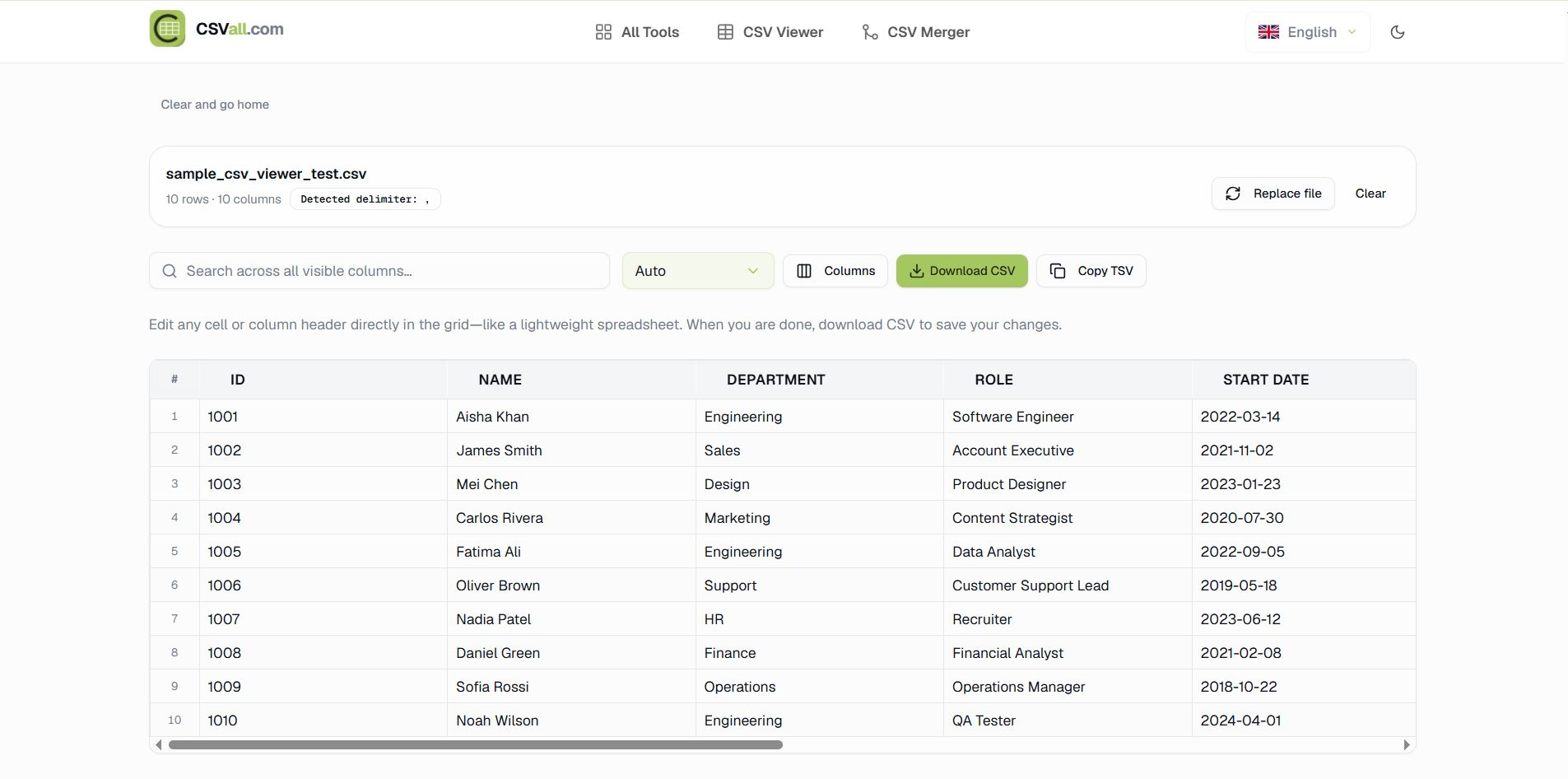
One of the most common CSV headaches is the delimiter. Your file might use commas, semicolons, tabs, or pipes to separate values. CSVall detects the delimiter automatically. When the file loads, you will see a small label at the top reading "Detected delimiter:" (or whichever character your file uses). You do not need to set anything manually.
2. Drag-and-Drop or Browse to Upload
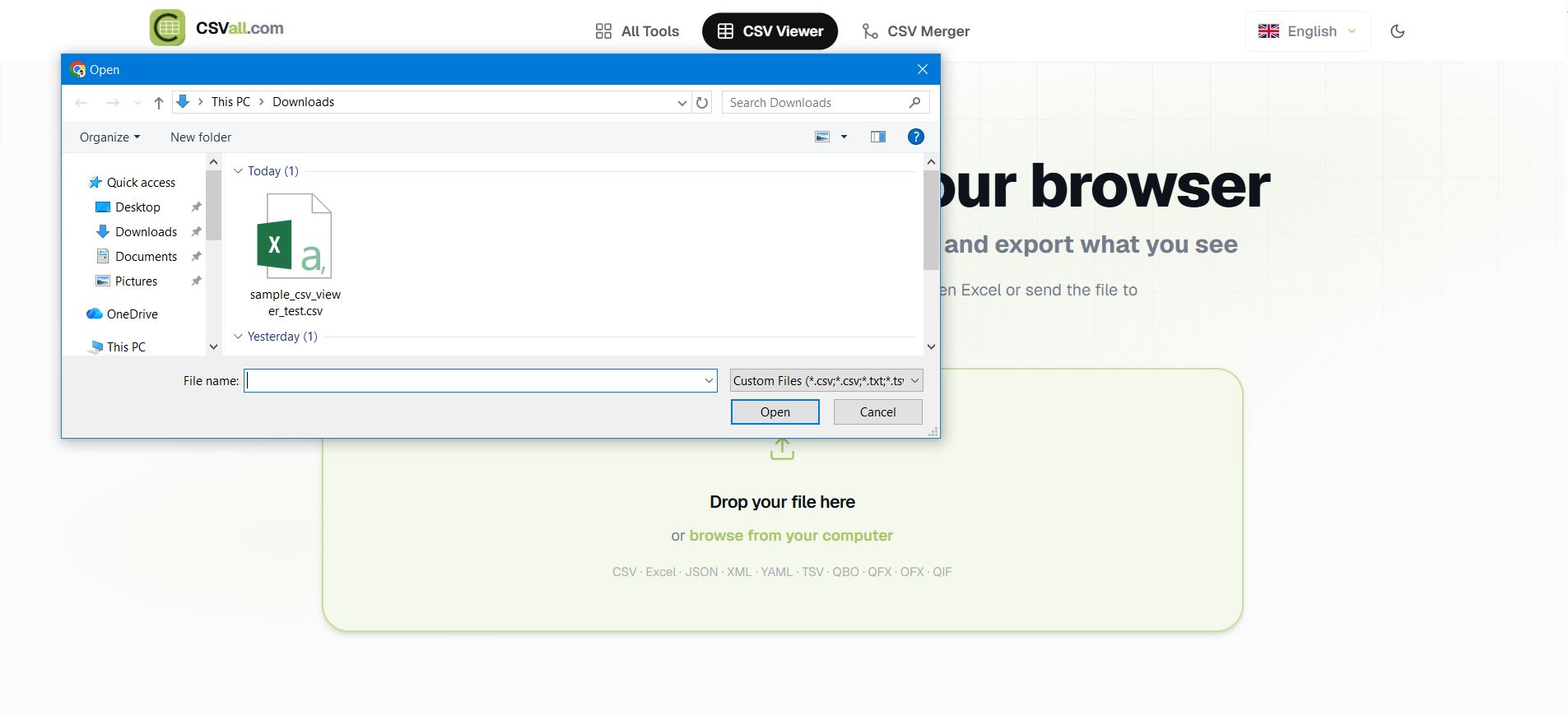
Opening a file takes two seconds. Either drag your .csv file directly onto the upload area, or click "browse from your computer" to pick it from a file dialogue. Beyond CSV, the tool also accepts Excel, JSON, XML, YAML, TSV, QBO, QFX, OFX, and QIF formats, so it works for bank statement exports and financial data files too.
3. Clean Grid View With Row and Column Count
Once loaded, your data appears in a clean, scrollable table. The top of the page shows you the filename, the row count, and the column count at a glance, for example, "10 rows · 10 columns". Each column gets a clear header, and each row gets a row number in the left margin so you always know where you are in the data.
4. Search Across All Visible Columns
The search bar at the top of the grid lets you filter rows instantly as you type. It searches across every visible column at once, so if you are looking for a specific name, email address, department, or date, you find it in seconds without scrolling through hundreds of rows manually.
5. Show or Hide Columns
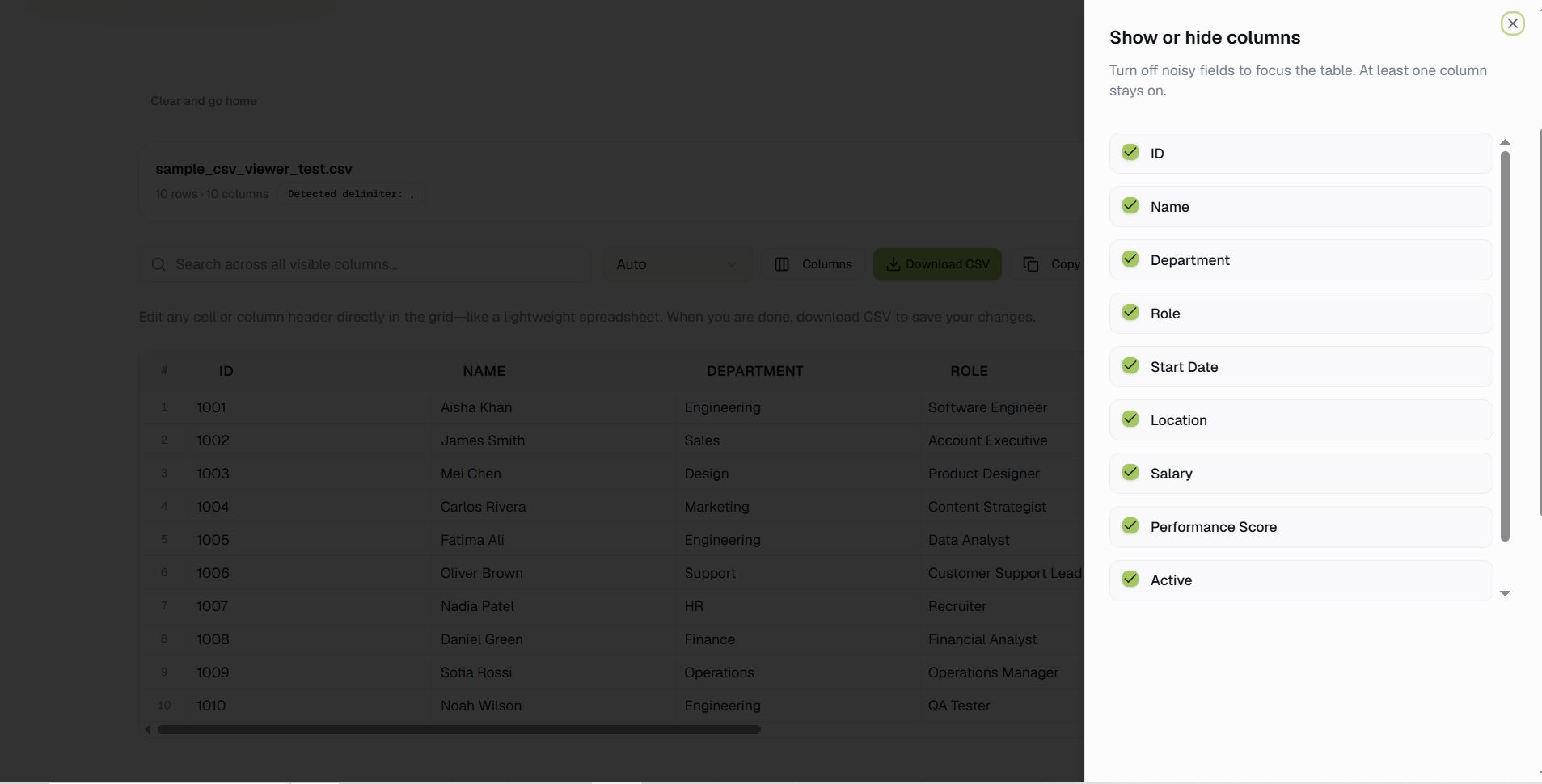
This is where CSVall stands out from basic viewers. Click the "Columns" button and a panel slides open on the right side of the screen. Every column in your file appears in a list with a green checkbox next to it. Toggle any column off to hide it from the grid. Toggle it back on to restore it.
This is particularly useful when your CSV has 20 or 30 columns but you only need to look at five of them. You focus on what matters and eliminate the visual noise of fields you do not care about at that moment.
6. Edit Any Cell or Column Header Directly
The viewer doubles as a lightweight editor. Click any cell in the grid and type to change the value. Click a column header and rename it. The tool works like a lightweight spreadsheet, you make your changes, then download the updated file.
7. Download CSV or Copy as TSV
When you are ready to save your work, click "Download CSV" to save the file with your edits and column changes applied. There is also a "Copy TSV" button that copies the visible data to your clipboard as tab-separated values, ready to paste into another tool or document.
8. Replace File Without Starting Over
Made a mistake and need to load a different file? Click "Replace file" to swap in a new CSV without having to navigate back to the homepage.
Who Actually Uses a CSV Viewer Online?
Based on the types of tasks this tool handles, the people who reach for it most often include:
Finance and accounting teams who receive bank statement exports, expense reports, or payroll files in CSV format and need to verify a few rows quickly before importing them elsewhere.
Marketing and sales professionals who pull lead lists or campaign results from their CRM or email platform and want to scan the data before passing it to another tool or team member.
Developers and QA engineers who need to inspect a test data file, check that an API export is formatted correctly, or verify that column headers match what the system expects.
HR and operations staff who work with employee records, attendance exports, or survey results and need to hide sensitive columns like salary before sharing the file.
Small business owners who do not have an Excel licence and just need a straightforward way to view an order export or stock file.
If you fall into any of these groups, this tool was built with your daily frustrations in mind.
How to View a CSV File on CSVall: Step by Step
Here is the full process from start to finish:
Step 1: Go to /csv-viewer.
Step 2: Either drag your CSV file onto the upload area, or click "browse from your computer" and select the file from your downloads folder or desktop.
Step 3: The file loads instantly. At the top, you will see the filename, row count, column count, and detected delimiter.
Step 4: Scroll through the table or use the search bar to find specific rows.
Step 5: Click "Columns" to toggle column visibility if you want to focus on specific fields.
Step 6: Click any cell or header to edit it if needed.
Step 7: Click "Download CSV" to save the file, or "Copy TSV" to copy the data to your clipboard.
That is the entire workflow. It takes under a minute for most files.
How to View a CSV File Without Excel
This is one of the most common questions people search for, and the honest answer is that you have more options than most people realise. Here is a quick comparison:
| Method | Installation Required | Private | Handles Large Files | Free |
|---|---|---|---|---|
| CSVall CSV Viewer | No | Yes (local) | Yes | Yes |
| Google Sheets | No | No (cloud-stored) | Limited | Yes |
| LibreOffice Calc | Yes | Yes | Yes | Yes |
| Notepad / TextEdit | No | Yes | Limited readability | Yes |
| Code editor (VS Code) | Yes | Yes | Yes | Yes |
For a quick, private, no-friction look at any CSV file, CSVall wins that comparison. Google Sheets is excellent for collaboration but stores your file on Google's servers. LibreOffice is powerful but requires installation. A text editor shows the raw commas and quotes, which is unreadable for most people.
The browser-based viewer hits a sweet spot that the other options miss: nothing to install, nothing uploaded, data displayed cleanly.
How to Open a CSV File on Mac Without Excel
Mac users often run into this problem because Numbers (Apple's spreadsheet app) does not always handle CSV formatting perfectly, and Excel is not pre-installed.
On a Mac, your fastest options are:
- CSVall CSV Viewer, open your browser, go to
/csv-viewer, drag the file in. Done. - TextEdit, right-click the CSV file, choose Open With > TextEdit. You will see the raw data, which works for tiny files but becomes unreadable quickly.
- Numbers, drag the CSV onto the Numbers icon. It usually works, but it may reformat dates and long numbers.
For anything beyond a five-row test file, the browser-based viewer is the most reliable Mac option because it reads the file exactly as written.
How to View Large CSV Files Without Lag
Large CSV files, anything over 50,000 rows, tend to crash or slow down standard spreadsheet apps. The CSVall viewer handles this better than Excel or Google Sheets for a quick scan because it renders data in the browser without needing to load formulas, styles, or calculation engines.
If you are regularly working with very large files (hundreds of megabytes or millions of rows), dedicated tools like DuckDB, DataGrip, or the VS Code Rainbow CSV extension are worth exploring. For everyday file sizes that most business users encounter, a few hundred to a few thousand rows. CSVall handles them without issue.
How to View a Bank Statement CSV Online
Banks often offer the option to export your transaction history as a CSV. These files typically include columns like date, description, amount, and balance. They are useful for budgeting, reconciliation, or feeding into an accounting tool.
The challenge is that you do not want your financial data sitting on a third-party server. This is where CSVall's local processing matters most. Because the file is read inside your browser tab and never sent to a server, you can open your bank statement CSV, check the data, hide any columns you do not need, and export a clean version, all without your financial data ever leaving your device.
Tips for Getting the Most Out of the CSV Viewer
Use column hiding before sharing. If you need to send a CSV to a colleague but it contains sensitive fields like salary or personal ID numbers, hide those columns first, then download the CSV. The downloaded file will only include the visible columns.
Use search to spot problems quickly. If you receive a data file and want to check whether a specific customer, product, or date exists, just type it in the search bar. It searches across all visible columns at once.
Check the delimiter label first. If your data looks like it is all jammed into a single column, check what delimiter was detected. You may need to re-export the file with a different separator from the source system.
Combine with the CSV Merger. CSVall also offers a CSV Merger tool alongside the viewer. If you have multiple CSV files you need to combine before inspecting, use the merger first, then open the result in the viewer.
Final Verdict: Is CSVall's CSV Viewer Worth Using?
If your current approach to opening a CSV file involves waiting for Excel to load, watching it reformat your dates, and then trying to undo the damage, yes, this tool is worth bookmarking.
CSVall's CSV Viewer is fast, private, and covers all the features most people actually need: a clean table view, search, column visibility control, basic editing, and a clean download. It does not try to be a full spreadsheet application, and that restraint is exactly what makes it useful.
For anyone who regularly opens CSV exports from banks, CRMs, email tools, project management platforms, or analytics dashboards, it removes one consistent friction point from the workflow: getting from file to readable data in under ten seconds, without touching Excel.
Published for informational purposes. Tool features verified as of 2026. Visit csvall.com for the latest updates.
Frequently asked questions
FAQ: CSV Viewer Online
Short answers about browser-based CSV workflows on CSVall.