
Markdown to CSV Converter Online: Convert Markdown Tables to Clean CSV
Convert Markdown tables from GitHub, Notion, Obsidian, Confluence, README files, and docs into clean CSV in your browser with CSVall's free Markdown to CSV converter.

Quick link: convert a Markdown table now with the free Markdown to CSV converter.
Markdown tables are everywhere once you start looking for them. They sit inside GitHub README files, Notion exports, Obsidian notes, Confluence pages, wiki docs, changelogs, API documentation, and project handoff files. They are easy to read in a document, but they are not always easy to reuse in a spreadsheet.
That is where a Markdown to CSV converter online helps. Instead of copying a table line by line, fixing pipes by hand, or writing a small Python script, you paste the Markdown table into CSVall's Markdown to CSV tool, check the preview, and download a clean CSV file.
This guide explains how to convert Markdown table to CSV, what table formats work best, how to handle GitHub, Notion, Obsidian, Confluence, README, wiki, and Jira table cases, and how to avoid the small formatting mistakes that usually break a CSV export.
What Is a Markdown Table?
A Markdown table is a plain text table usually written with pipes and dashes. In GitHub Flavored Markdown, often called GFM, a simple table looks like this:
| Name | Role | Team |
| --- | --- | --- |
| Sara Khan | Editor | Content |
| James Lee | Analyst | Data |
That format is great for documentation because it stays readable in plain text and renders nicely on GitHub, Notion, Obsidian, and many wiki tools. The problem starts when you need the same information in Excel, Google Sheets, Airtable, a CRM, or a reporting tool.
CSV is the practical bridge. Once the Markdown table becomes CSV, you can open it as a spreadsheet, import it into a database, join it with other data, or send it to someone who does not work inside Markdown files.
Why Convert Markdown Table to CSV?
People usually search for markdown table to csv online free tools when they are already in the middle of a task. They have a table in a README, release note, or exported document, and they need a spreadsheet version quickly.
Common cases include:
- A product manager wants to turn a GitHub roadmap table into a spreadsheet.
- A developer needs a readme table to csv converter for test cases or API fields.
- A content team exports a Notion table as Markdown and wants to clean it in Excel.
- A support team copies a Confluence table and needs a CSV for reporting.
- A documentation writer wants to extract data from Markdown table content without coding.
- A student or researcher has an Obsidian note table and wants a CSV download.
You can do this manually, but it gets messy fast. Pipes inside cells, alignment rows, extra spaces, code snippets, and long text values can all create broken columns. A converter built for Markdown table syntax handles those details for you.
The Fastest Way to Convert Markdown to CSV Online
The easiest workflow is simple:
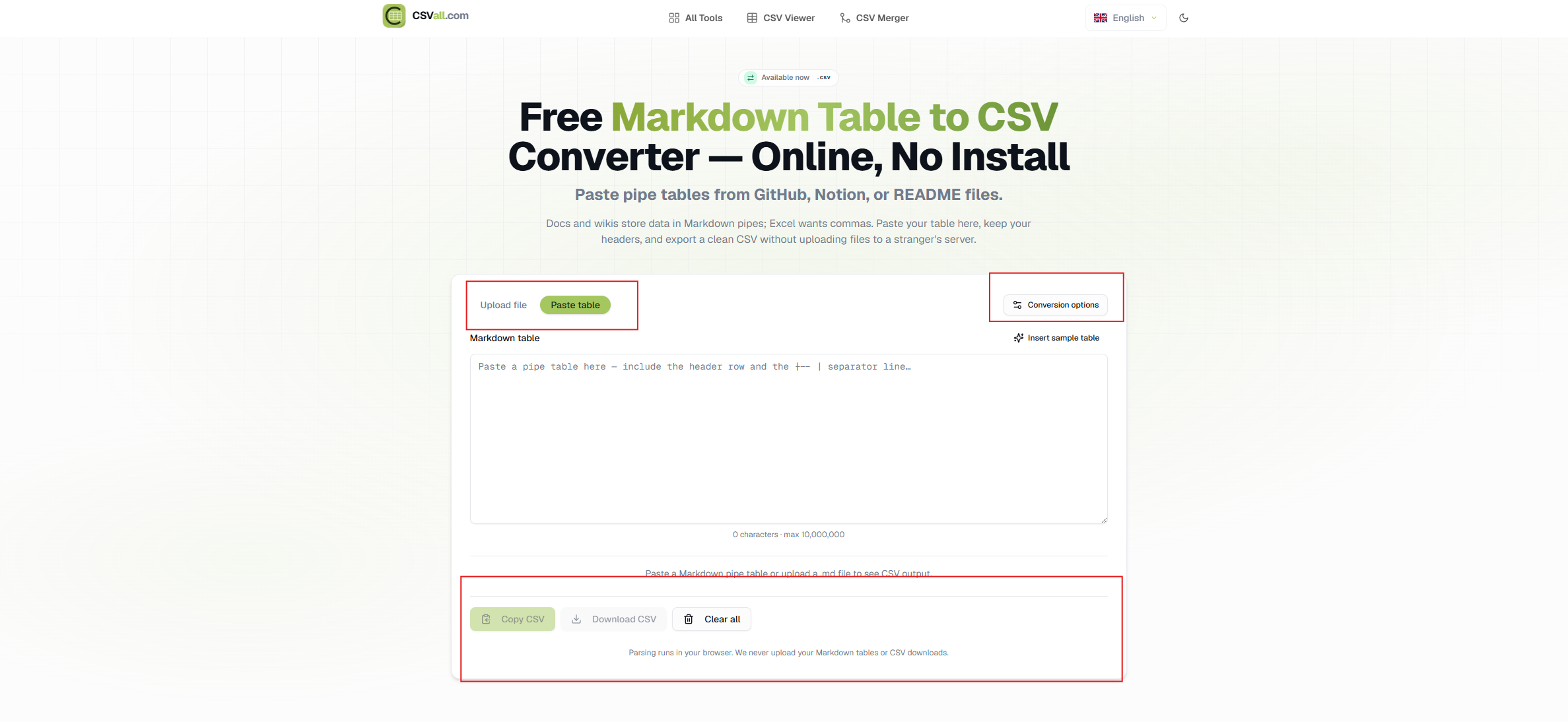
- Open the Markdown to CSV converter.
- Paste your Markdown table into the input box, or upload a
.md,.markdown, or.txtfile. - Check the live table preview.
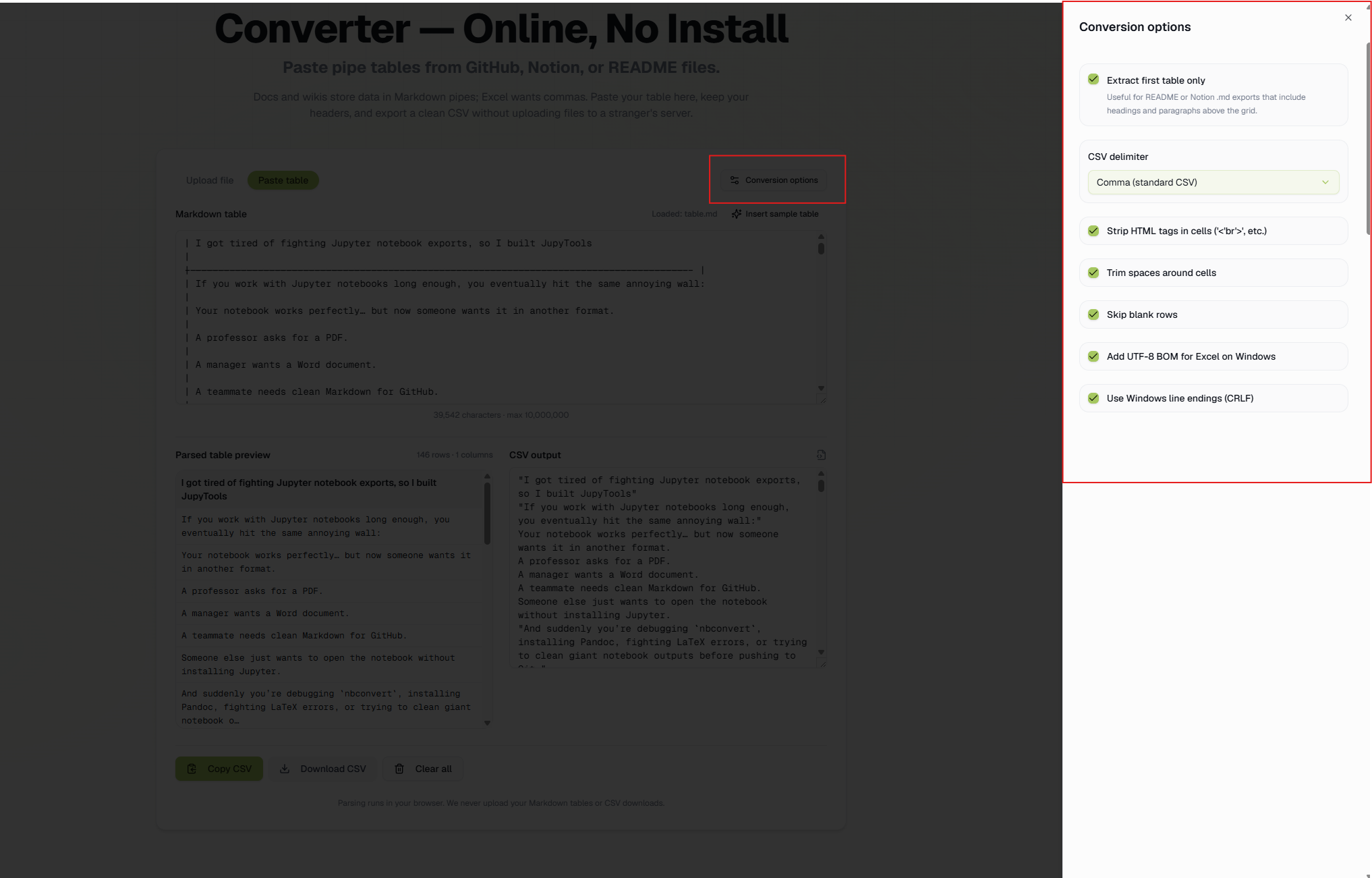
- Open options if you need a different delimiter, UTF-8 BOM, Windows line endings, trimmed cells, or HTML cleanup.
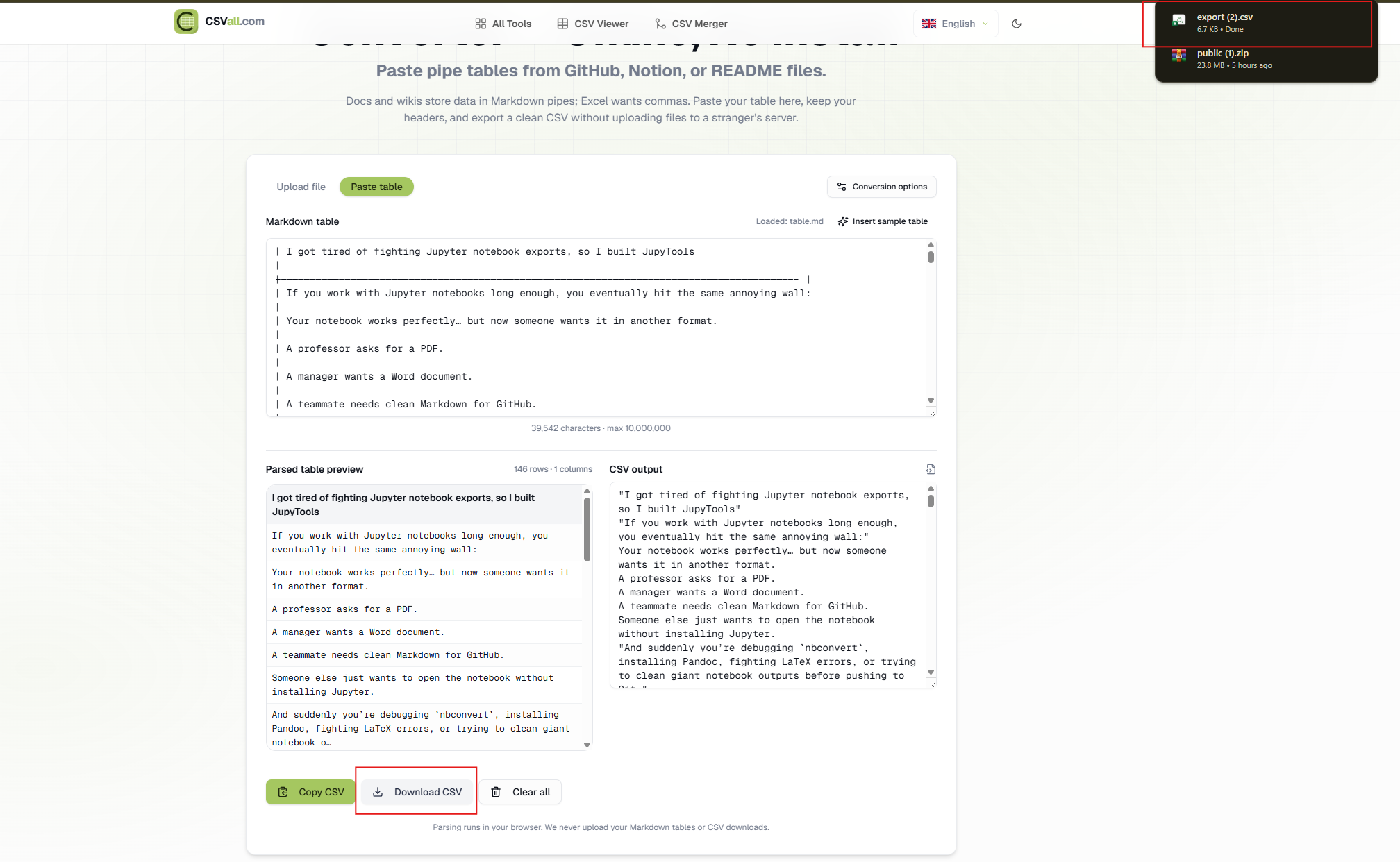
- Click Download CSV or Copy CSV.
That is the full process. No signup, no spreadsheet setup, no command line, and no Python script.
Paste Markdown Table and Get CSV
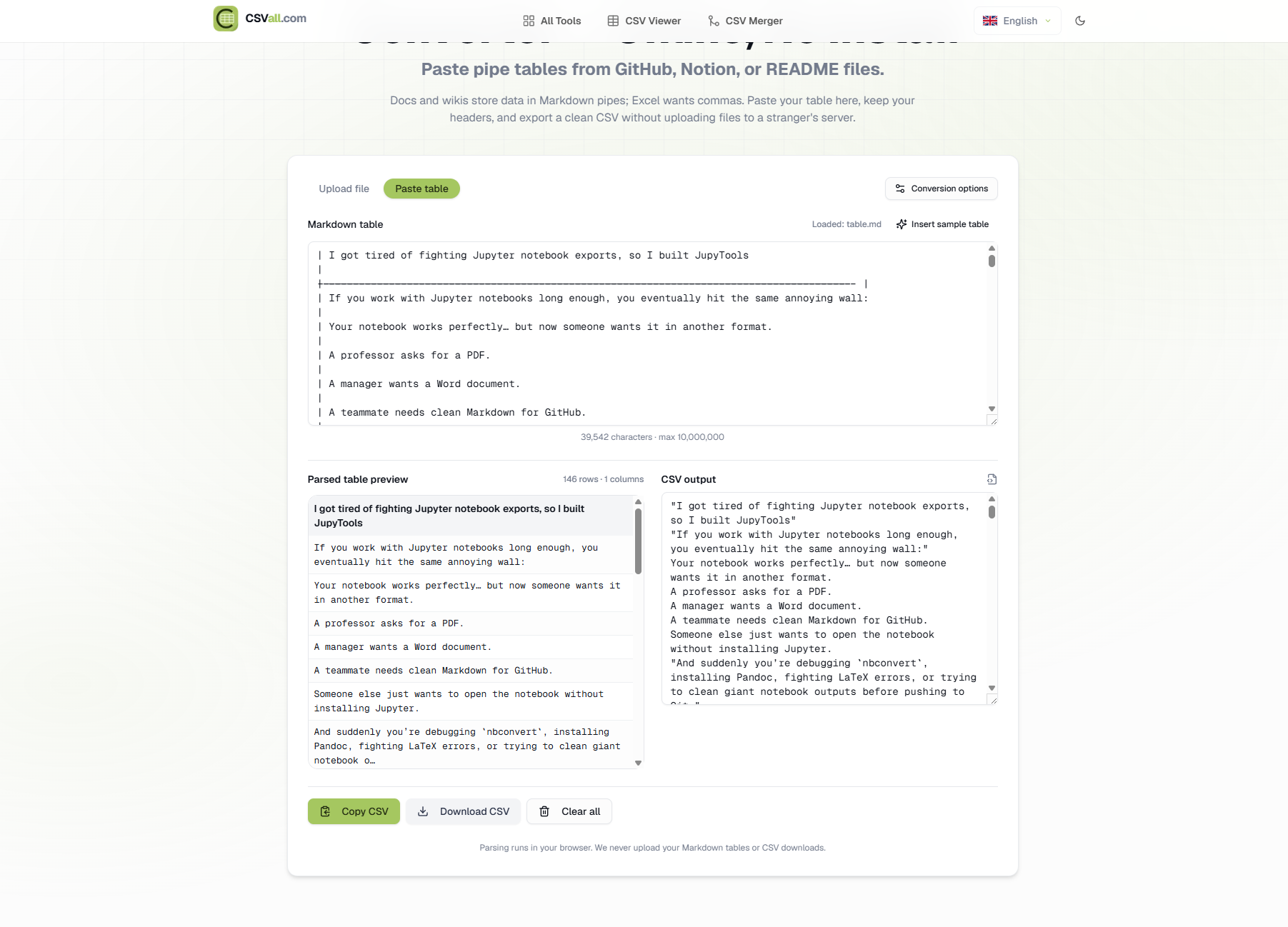
For most people, pasting is faster than uploading a file. Copy the table from GitHub, Notion, Obsidian, Confluence, a wiki page, or a README file, then paste it into the tool. CSVall reads the pipe table and shows both a table preview and the CSV output.
This is useful because you can catch mistakes before downloading. If a row has too many columns, if a cell split because of an unescaped pipe, or if the table copied with extra text around it, the preview makes the issue visible right away.
The tool is built for normal documentation work, not only perfect demo tables. It handles uneven spacing, optional leading and trailing pipes, alignment markers, and escaped pipes such as \|.
GitHub Markdown Table to CSV
GitHub README files are one of the most common sources for Markdown tables. You might have feature lists, package comparisons, API parameters, changelog tables, pricing notes, or test matrices stored inside a repository.
To convert a GitHub Markdown table to CSV, open the README, copy the table, and paste it into CSVall's Markdown converter. GitHub uses GFM pipe tables, which are exactly the format the tool expects.
This works well for:
- README comparison tables
- GitHub issue templates
- Release note tables
- API field lists
- Open source package tables
- Test result summaries
If your table contains a literal pipe character inside a cell, GitHub usually escapes it as \|. CSVall reads that as a cell value, not as a new column separator.
Markdown Table to Excel CSV
Searches like markdown table to excel csv usually mean one thing: you want the Markdown table in a spreadsheet. CSV is the cleanest handoff format because Excel, Google Sheets, Numbers, LibreOffice, and most business apps can open it.
After you download the CSV from CSVall, open it in your spreadsheet app. If you only need to inspect the result first, use the CSV Viewer to open the file in your browser. If you want to turn spreadsheet data back into a Markdown table later, use the CSV to Markdown converter.
One practical tip from real spreadsheet work: keep UTF-8 BOM enabled if your table contains non-English names, symbols, or accented characters and you plan to open the CSV in Excel on Windows. It helps Excel detect the encoding correctly.
Notion Table Markdown to CSV
Notion exports pages as Markdown, and tables often come out as pipe tables. That makes Notion table Markdown to CSV conversion straightforward.
The cleanest method is:
- Export the Notion page as Markdown.
- Open the
.mdfile in a text editor. - Copy the table you need.
- Paste it into CSVall's Markdown to CSV tool.
- Download the CSV.
If the Notion export contains headings, notes, and multiple tables, use the first-table extraction option or copy only the table you want. That keeps the output clean and prevents unrelated text from entering the CSV.
Obsidian Table to CSV Export
Obsidian users often keep structured notes in Markdown tables: reading lists, habit trackers, research summaries, plugin comparisons, content calendars, and small databases.
An Obsidian table to CSV export is useful when the note grows beyond simple reading. Once you have the CSV, you can sort it, filter it, chart it, or combine it with other files.
Copy the table from the Markdown source view in Obsidian, not the rendered preview. The source view preserves the pipe table syntax, which gives the converter the cleanest input.
Confluence Table to CSV
Confluence content can be tricky because tables may come from rich text, copied HTML, or exported Markdown. If your Confluence page gives you a clean Markdown pipe table, paste it directly into the converter.
If the copy includes HTML tags, turn on the cleanup option in CSVall. The converter can strip common HTML from cells so the CSV output stays readable.
For teams that keep release notes, service matrices, security reviews, or support tables in Confluence, this is often faster than recreating the table manually in a spreadsheet.
Wiki Table to CSV Converter
The phrase wiki table to CSV converter can mean different source formats. Some wikis use Markdown pipe tables. Others use MediaWiki or Jira-style syntax. CSVall is designed for Markdown pipe tables, so the best result comes from a table that looks like a GFM table.
If your wiki table already uses pipes and a separator row with dashes, paste it directly. If it uses another syntax, export it as Markdown first or clean it into a pipe table before converting.
Jira Table to CSV Converter Online
Jira wiki tables often use a different style, where header cells may look like || Heading ||. That is not the same as a GitHub Flavored Markdown table.
For a Jira table to CSV converter online workflow, first convert the Jira table into standard Markdown pipe table format, then paste it into CSVall. A clean GFM table has one header row, one separator row, and regular body rows.
Use this target shape:
| Issue | Owner | Status |
| --- | --- | --- |
| CSV-101 | Mina | Open |
| CSV-102 | Omar | Done |
Once the table is in that format, CSVall can produce the CSV output quickly.
GFM Pipe Table to CSV: What the Converter Handles
A good GFM pipe table to CSV tool should do more than split every line by the | character. Real tables include edge cases.
CSVall handles the important ones:
- Leading and trailing pipes are optional.
- Alignment rows such as
:---,:---:, and---:are treated as formatting. - Escaped pipe characters such as
\|stay inside the cell. - Extra spaces around cells can be trimmed.
- Empty rows can be skipped.
- HTML inside cells can be cleaned.
- Output can use comma, tab, or semicolon delimiters.
- Windows line endings can be enabled for Excel-friendly files.
These details matter. A basic split-and-join converter often looks fine for a tiny table but fails when a real README includes links, long descriptions, escaped pipes, or mixed spacing.
Markdown to CSV Python Alternative
You can convert Markdown to CSV with Python, especially if you are comfortable with scripts. For repeated data pipelines, that may be the right choice.
For one-off work, a browser tool is faster. You do not need to install packages, write parsing code, or debug edge cases. Paste the table, check the preview, and download the CSV.
A Markdown to CSV Python alternative is especially useful for:
- Non-technical teammates who need a no-code workflow.
- Developers who only need a quick conversion.
- Documentation teams that handle README and wiki tables all day.
- Support teams that need spreadsheet-ready data from internal docs.
If you later need to inspect or clean the result, open it in the CSV Viewer, merge it with other exports using Merge CSVs, or convert structured data from another source with JSON to CSV.
Multiple Markdown Tables to CSV
Long Markdown files often contain more than one table. A README might include a feature table, a compatibility table, and a changelog table. A Notion export might contain several small tables across one page.
For multiple Markdown tables to CSV, the cleanest approach is to convert one table at a time. Copy the table you need, paste it into CSVall, download the CSV, then repeat for the next table.
If you paste a full document, use the first-table extraction option when you only want the first table. This is helpful for documentation files where the table is surrounded by headings and paragraphs.
How to Convert a Markdown Table to a Spreadsheet
If your final goal is a spreadsheet, follow this workflow:
- Copy the Markdown table from GitHub, Notion, Obsidian, Confluence, or your Markdown file.
- Paste it into CSVall Markdown to CSV.
- Review the preview to make sure columns line up.
- Download the CSV file.
- Open the CSV in Excel, Google Sheets, Numbers, or LibreOffice.
If the table includes names, non-English text, or special characters, keep UTF-8 BOM on before downloading. If your spreadsheet app expects semicolons because of regional settings, choose semicolon as the delimiter.
Common Markdown Table Problems and Fixes
The CSV has too many columns.
Look for a pipe character inside a cell. In Markdown, a literal pipe should be escaped as \|.
The first row looks wrong.
Make sure your table has a header row and a separator row. The separator row usually contains dashes.
The output includes text that is not part of the table.
Copy only the table, or use the first-table extraction option when pasting a longer Markdown document.
Excel shows strange characters.
Download again with UTF-8 BOM enabled, especially if the table contains accented letters or non-English text.
Rows do not line up.
Check whether one row has missing cells. CSVall normalizes row widths, but reviewing the preview helps catch source mistakes before export.
Why CSVall Is a Practical Markdown Table to CSV Browser Tool
CSVall keeps the workflow focused. It does not ask you to create an account. It does not require a desktop app. It does not make you write code. It gives you the parts that matter for everyday conversion:
- Paste or upload Markdown.
- Preview parsed rows.
- Copy CSV.
- Download CSV.
- Choose comma, tab, or semicolon output.
- Clean common cell formatting.
- Keep files private in your browser.
That last point matters when you are working with client lists, internal documentation, finance notes, or product data. A Markdown table to CSV browser tool should make the job faster without adding a privacy risk.
Related CSVall Tools
Once your Markdown table is in CSV format, you may want to keep working with it:
- Use CSV Viewer to inspect the downloaded file without opening Excel.
- Use CSV to Markdown when you need to go in the opposite direction.
- Use Merge CSVs if you convert several tables and want one combined file.
- Use JSON to CSV for structured data from APIs or app exports.
- Use CSV to PDF when you need a clean printable version.
- Browse all available tools from the CSVall tools page.
Final Takeaway
Markdown tables are convenient for docs, but CSV is the format most spreadsheet and business tools understand. If you need to convert a GitHub README table, Notion export, Obsidian note, Confluence table, wiki table, or GFM pipe table into a spreadsheet-ready file, the fastest route is a dedicated converter.
Use the Markdown to CSV converter, paste your table, check the preview, and download the CSV. It is a simple workflow, but it saves the kind of manual cleanup that turns a two-minute task into a frustrating half hour.
Open the Markdown to CSV converter
Published for informational purposes. Tool features verified as of 2026. Visit csvall.com for the latest updates.
Frequently asked questions
FAQ: Markdown Table to CSV
Short answers about browser-based CSV workflows on CSVall.